
Arabic E-learning Localization: Storyline, Rise and Captivate Guide
Arabic e-learning localization is not the same job as translating a Word document. The text lives inside an authoring tool, the layout has to read right to left, narration has to line up with slide timelines, and the finished course is republished as a SCORM or xAPI package that has to behave correctly in your LMS. Many avoidable problems in Arabic course rollouts trace back to decisions that were not made at the start: which export route to use, who handles the player interface, and how the course will be tested.
This guide walks through those decisions for three widely used authoring tools: Articulate Storyline 360, Articulate Rise 360 and Adobe Captivate. Tool behavior described here is taken from each vendor’s own documentation; check it against the version your team has installed.
1. Localize the source project, not the published package
A SCORM or xAPI zip is the output of the authoring tool, not the place to translate. Editing text inside a published package bypasses the tool’s layout engine and is lost the next time anyone republishes. The workable route is to duplicate the source project for Arabic, export its text, translate it, import it back and republish.
Each tool has its own export route, and each has content that the route does not carry:
| Tool | Text export for translation | Right-to-left support | Known gaps |
|---|---|---|---|
| Storyline 360 | XLIFF (1.2 or 2.0) or Word, via File > Localization > XLIFF/Word Translation | Player setting “Text is read from: Right to Left”, RTL text direction button on slides (Home tab; needs an RTL keyboard language installed), sidebar moved to the right | Closed captions, trigger conditions, player text labels, variable names |
| Rise 360 | XLIFF 1.2 (the manual route is documented for left-to-right languages) | Documented by Articulate separately from the manual XLIFF route; check which option your license includes | Code blocks, survey blocks; questions drawn from question banks stay in the original language |
| Adobe Captivate | Captivate Classic: Word (File > Export > Project Captions And Closed Captions) or XML (File > Export > To XML); confirm the route for current Captivate with Adobe | Current Captivate: enable right-to-left languages in Preferences, then set text direction per object; Adobe notes a limited set of supported Arabic fonts and some table-of-contents labels that stay in the default language | Classic XML: Info, Blabber and Skin tooltips; audio is exported only as closed captions |
The Rise 360 row matters most for planning. If your team builds in Rise and needs Arabic, confirm with Articulate how your license handles right-to-left layout in Rise before the translation budget is approved, because its manual XLIFF instructions cover left-to-right languages only.
2. Plan the right-to-left layout, not just right-to-left text
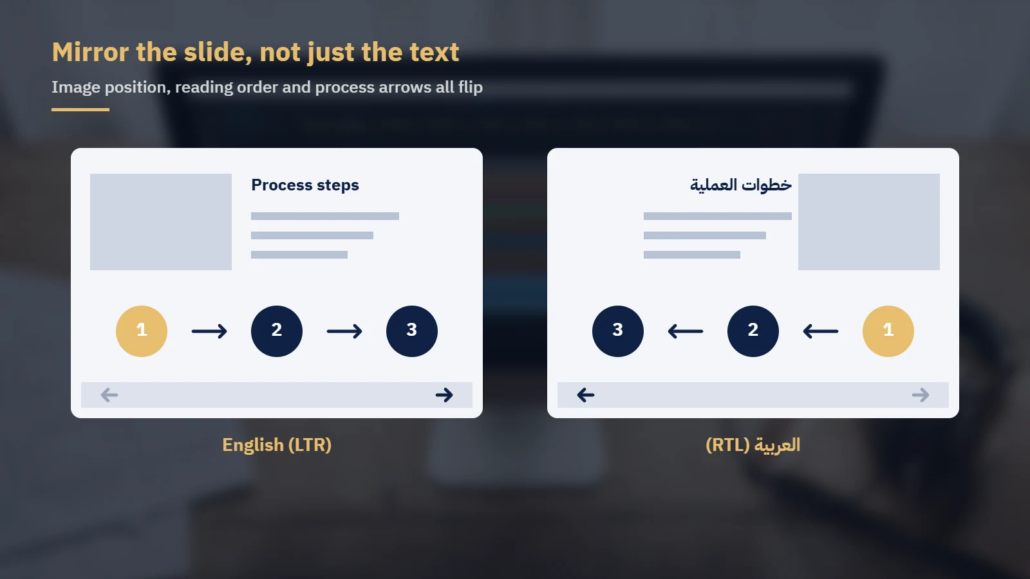
Switching text direction does not mirror a slide. In Storyline, the vendor documentation covers three separate steps: the player reading direction, the text direction of each text box, and the sidebar position. Nothing in that process moves your objects. A slide designed with the image on the left and the text on the right keeps that arrangement unless someone rebuilds it.
For Arabic learners, the reading path runs from the top right. That affects:
- Process diagrams and timelines, where arrows and step order should run right to left
- Click-and-reveal interactions, where the first tab or hotspot a learner expects is on the right
- Progress indicators and “previous/next” arrows drawn as graphics rather than player buttons
- Drag-and-drop activities, where source and target zones may need to swap sides
- Mixed-direction strings such as product names, codes and keyboard shortcuts inside Arabic sentences
Mixed-direction text is where many visual bugs appear. “Please press Ctrl+S to save” becomes “يُرجى الضغط على Ctrl+S للحفظ“, and the Latin shortcut has to sit correctly inside the Arabic line. Test these strings in the published output, not only in the authoring view. Fonts matter too: Articulate notes that player fonts must support right-to-left text, and Adobe notes that Captivate supports a limited set of Arabic fonts, so agree the Arabic font before translation starts.
3. Agree an Arabic style guide and glossary before translation
Training content addresses the learner directly, and Arabic grammar marks gender in second-person forms. For a mixed workforce, decide early whether instructions use the masculine form, the plural, or neutral constructions such as “يُرجى النقر على «التالي»” (please click “Next”). Whatever you choose, apply it across every module so learners do not see the form change from one course to the next.
Other decisions that belong in the style guide:
- Register: Modern Standard Arabic for on-screen text across Gulf and Egyptian audiences, with any dialect reserved for scenario dialogue and narration where the client wants it
- Numerals: Western digits (0–9) or Arabic-Indic digits (٠–٩), applied consistently in text, tables and quiz answers
- Company terminology: policy names, job titles, system names and acronyms that must match what employees see in HR and operations documents
- Interface terms: one fixed Arabic term for each player and navigation label
A short glossary of interface terms prevents the common problem of one button appearing under two different names:
| English label | Arabic | Where it appears |
|---|---|---|
| Next | التالي | Player navigation |
| Previous | السابق | Player navigation |
| Submit | إرسال | Quiz buttons |
| Menu | القائمة | Player sidebar |
| Resources | الموارد | Player tab |
| Correct | إجابة صحيحة | Quiz feedback layer |
4. Handle what the export does not carry
The export file covers the bulk of on-screen text, but a finished Arabic course needs everything else too. Build a list of these items for each course before the quote is agreed:
- Player text labels, which Storyline documents as translated manually in the tool rather than through the export
- Trigger conditions that compare text values, which must match the translated wording or the interaction stops working
- Closed captions, which Storyline handles as separate caption files (it imports SRT, VTT, SBV and SUB)
- Text embedded in images, screenshots and diagrams, which needs to be recreated as Arabic graphics
- Questions drawn from question banks in Rise, which stay in the original language under the manual XLIFF route
- Course title and description in the LMS catalog, which sit outside the authoring tool entirely
Software screenshots need a separate decision. If the system your employees use has an Arabic interface, the screenshots should show it, and those captures have to come from your team or your software vendor.
5. Arabic voice-over and subtitles
Narrated courses need a decision on voice before recording starts. Modern Standard Arabic suits compliance, safety and policy modules shared across several countries. Scenario-based modules, such as customer service role-plays for a Gulf or Egyptian workforce, often land better with a voice in the learners’ own dialect. Casting follows that decision: choose voice actors in the dialect the script is written for.

Arabic narration can run longer or shorter than the English original, so slide timelines, animation cues and object entrances need to be re-synced to the new audio. Where a course uses talking-head video, decide between lip-sync dubbing and Arabic subtitles; subtitles are faster to produce, while dubbing keeps attention on the speaker. Caption files for narration should be built from the final recorded script, not the pre-recording draft.
6. Test the published package in your LMS
A course that looks right in the authoring preview can still fail in the LMS. Once the Arabic version is republished as SCORM or xAPI, run it in your LMS (or its test environment) and check:
- Player direction, sidebar position and navigation labels match the style guide
- Every slide reads right to left, including diagrams and interactions
- Mixed Arabic and English strings display in the correct order
- Narration, captions and animations stay in sync on every slide
- Quiz answers are scored correctly after translation, including text-entry questions
- Completion, score and resume (bookmarking) report correctly to the LMS
- Course title, description and completion messages in the LMS appear in Arabic where required
Working with Locstars
Locstars is an Arabic translation and localization company working between Arabic and English, Chinese, French, Spanish, German, Turkish, Russian, Hindi, Japanese and Korean. Our translators are native speakers of the target language and subject specialists, and we keep the same team on your account with a consistent term glossary across courses. Our in-house multimedia team provides Arabic voice-over with voice actors in different Arabic dialects and lip-sync dubbing, our DTP team recreates graphics and right-to-left layouts, and we carry out in-product testing of the published course. Files are delivered in the format you send. You own the translation memory, and content matched in it is charged at reduced rates. Editing and proofreading by a second linguist are available as a separate, optional step. We work under your NDA and can translate a sample from your own course before a large project. See our e-learning localization services or request a quote; we send a quote within one business day.
About the author: The Locstars E-learning Localization Team combines native-speaker subject-specialist translators, an in-house multimedia team for Arabic voice-over in different Arabic dialects and lip-sync dubbing, and a DTP team for right-to-left layout, working on training content for companies taking their courses into Arabic.

