
Arabic DTP in InDesign: RTL Layout Settings and a Pre-Press Checklist
When an English brochure, manual or report is translated into Arabic, the layout is half of the deliverable: the text has to run right to left, letters have to join correctly, numbers have to appear in the digit system your readers expect, and the page itself usually needs to be mirrored.
This guide covers the Adobe InDesign settings and layout decisions that matter most in Arabic DTP, and ends with a pre-press checklist for approving an Arabic file for print or PDF.
1. Start with the right edition and the right composer
InDesign’s Arabic and Hebrew features ship in the Middle East and North Africa (MENA) editions of the software. Adobe describes these as “English Arabic” and “English Hebrew” editions, installed from the Creative Cloud desktop app by choosing English Arabic or English Hebrew as the app language (Preferences > Apps) before installing InDesign or Illustrator. If paragraph direction and kashida options are missing from the Paragraph panel, check the edition first.
Inside the document, Arabic paragraphs should be set with the Adobe World-Ready Paragraph Composer, chosen from the Paragraph panel menu. A common symptom of an Arabic paragraph left on a Latin-only composer is letters that appear separated or out of order, so check paragraph styles, not just individual paragraphs.
In Illustrator, the equivalent options are the Middle Eastern & South Asian Single-line Composer and the Middle Eastern & South Asian Every-line Composer, available from the Paragraph panel flyout menu after you select Show Indic Options in Edit > Preferences > Type.
2. Set InDesign right-to-left direction at every level
Right-to-left in InDesign is set at several levels:
- Binding (document): Arabic publications are bound along the right edge. When Binding is set to Right To Left in the Document Setup dialog box (File > Document Setup), the Pages panel numbers page icons from right to left.
- Story: the Story panel (Window > Type & Tables > Story) sets the direction of a whole story.
- Paragraph: the Paragraph panel sets paragraph direction; check alignment, indents and bullets after switching.
- Character: Character Direction in the Character panel menu (Default, Left-to-Right, Right-to-Left) handles embedded runs of the other direction.
- Tables: Table > Insert Table offers a Direction list, and existing tables can be switched with the Right-to-Left Table icon in the Table panel, so the first column sits on the right.
Set these in paragraph and table styles rather than by manual overrides. If your printer imposes pages for a right-bound book, confirm the page order and binding edge with them before final output.
3. Mirror the layout, not only the text
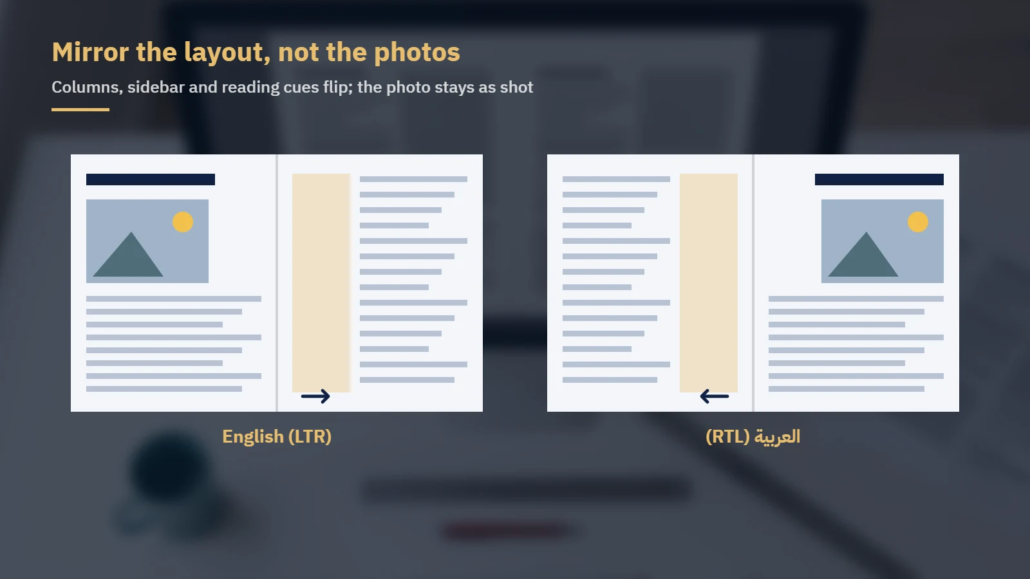
An Arabic reader starts at the top right of the page, so the elements that carry reading order usually flip:
- Column order, sidebars and pull quotes move to the opposite side.
- Directional arrows and “next” or “previous” cues are reversed. An English “Next →” becomes التالي ←.
- Timelines, process diagrams and step sequences run right to left.
- Chart axes and legends are reviewed so the story of the data reads in the new direction.
- Page numbers and running heads are checked on both pages of each right-bound spread.
Some elements should not be mirrored: logos and brand marks, product photographs, screenshots of software that stays in English, and any image containing Latin text. Diagrams with embedded English labels need the labels rebuilt in Arabic.
4. Choose Arabic fonts that fit the job and the license
- Script coverage: the font must include a full Arabic character set, including the Arabic comma (،), question mark (؟) and percent sign (٪), and the digit styles you plan to use.
- Pairing with Latin: codes and URLs usually stay in Latin script, so pair the Arabic face with a matching Latin face.
- Justification support: Adobe lists Adobe Arabic, Myriad Arabic and Adobe Naskh as Arabic fonts with justification alternates in InDesign.
- Licensing and packaging: Adobe’s documentation states that the Adobe Fonts Terms of Use do not allow copying or moving the font files, so they are not included when a file is packaged. The same terms allow font data to be embedded in PDFs.
Agree on the Arabic font family before layout starts. Swapping fonts late can change line breaks throughout a long document.
5. Justify with kashida, and handle diacritics deliberately
Justified Arabic text is traditionally stretched by lengthening letter connections rather than by widening the gaps between words. This extension is called kashida (تطويل): for example, كتاب can be extended as كـــتاب. In InDesign’s Paragraph panel, the Insert Kashida list offers None, Short, Medium, Long and Stylistic; Adobe notes that kashidas lengthen characters and leave whitespace unchanged. Kashidas can also be applied to selected characters from the Character panel menu.
Apply kashida consistently through paragraph styles: heavy kashida can look uneven, while none can leave wide word gaps in narrow columns. Adding tracking to fill Arabic lines is not a substitute for kashida.
For vocalized text, InDesign’s Character panel lets you adjust the horizontal and vertical position of diacritic marks, and Find/Change includes a query for coloring Arabic diacritics.
6. Decide the digit system and control mixed-direction runs
Arabic documents use either Western digits (2026) or Arabic-Indic digits (٢٠٢٦), depending on market, sector and house style. InDesign’s Character panel has a Digits list with Arabic, Hindi and Farsi options, and a preference, Use Native Digits when typing in Arabic Scripts (Edit > Preferences > Advanced Type), affects the digits used while typing. Because these option names do not match the terms reviewers use, confirm the result on screen.
Choose one digit system per document and apply it through styles, including in tables, captions, charts and page numbers.
In a line such as رقم الطراز: LX-200, the Latin model number must keep its internal order while sitting correctly inside a right-to-left sentence. Watch for:
- Product codes, part numbers and model names with hyphens or slashes.
- Phone numbers, dates, prices and percentages (for example ٥٠٪ or 50%).
- URLs and email addresses.
- Parentheses and quotation marks at the edge of a Latin run, which can appear reversed.
Where a run displays in the wrong order, InDesign’s Character Direction setting can be applied to the run rather than retyping it. When copying Arabic text from Microsoft Word, Adobe notes that the pasted text’s alignment and direction are set to those of the Arabic text; check styles after pasting.
7. Pre-press checklist for Arabic InDesign files
Before approving an Arabic file for print or PDF, check:
| Check | What to look for | Where to check in InDesign |
|---|---|---|
| Composer | Every Arabic paragraph style uses the World-Ready Paragraph Composer | Paragraph panel menu; paragraph style settings |
| Binding and page order | Right-edge binding; spreads read right to left | File > Document Setup; Pages panel |
| Direction | Story, paragraph and table direction set to right-to-left | Story panel; Paragraph panel; Table panel |
| Mirroring | Columns, arrows, timelines and charts flipped; logos and photos not flipped | Visual review of every spread |
| Fonts | Type > Find/Replace Font shows no missing fonts; agreed Arabic and Latin families used | Type > Find/Replace Font; Preflight panel |
| Digits | One digit system across text, tables, charts and page numbers | Character panel > Digits |
| Mixed runs | Codes, phone numbers, URLs and brackets display in the correct order | Character panel menu > Character Direction |
| Justification | Consistent kashida setting; no stretched word gaps in narrow columns | Paragraph panel > Insert Kashida |
| Overset text | No text hidden at the end of frames after translation length changes | Preflight panel; frame out-ports |
| Links and images | All images linked; embedded English labels replaced with Arabic | Links panel; Preflight panel |
| PDF output | Fonts embedded; page order correct in the exported PDF | Export settings; review in a PDF viewer |
Finally, have an Arabic reader review the exported PDF, not only the InDesign file. Shaping, digit and direction problems are easiest to spot in the final output.

Working with Locstars
Locstars is an Arabic translation and localization company. Our desktop publishing team works in right-to-left layout and recreates drawings and layouts in Arabic, and we deliver files in the format you send us. Translation is handled by native-speaker, subject-specialist translators, with a consistent term glossary and the same team kept on your account. You own the translation memory, and repeated content matched in the memory is charged at reduced rates. Editing and proofreading by a second linguist is available as a separate, optional step. We work under your NDA, can translate a sample from your own document before a large project, and delete files on request. To discuss an Arabic layout project, request a quote; we reply with a quote within one business day.
Font license terms vary by foundry and by license type. Before sending font files to a vendor or printer, confirm what your license allows with the team or person who manages your font licenses.
About the author: The Locstars desktop publishing team prepares Arabic layouts in right-to-left, recreating drawings and layouts in Arabic and delivering files in the format the client sends, working alongside the company’s native-speaker, subject-specialist translators.

